Highlight Of Last Week

Search This Website

Tuesday, October 22, 2019

How to Recover Twitter Account Password


How to Recover Twitter Account Password

If you have forgotten the password for the Twitter account, learn how to recover it.
The following is a simple way to change your password when you forget your Twitter account.

Recovery Twitter account password simple steps

1. Go to Twitter’s sign in page.

2. Open the Password Reset link
3. Enter your email address.
4. Follow the instructions in the email or SMS message.
5. Choose a new password and make sure not to lose it again.


How to Recover Twitter Account Password

How to get a password Recover  without Email

The simplest method of recovering passwords without email is given below.
1. Use your phone number to request a password reset link
2. Contact your email provider to assist you with the recovery of your account.
3. Change the password from your Twitter for iOS or Android app.
We strongly recommend you use this opportunity to set a strong password that meets the following criteria:
1. Is at least 10 characters long.
2. Contains at least one upper and lower case letter.
3. Has at least one number.
4. Uses one special character.
Tips : If you want to recover a password in a Twitter account, you can add a new password by entering the Forgot Password.

How to recover forgotten Twitter password?

1. First open the twitter sign in page and from the sign in page, choose the ‘Forgot password?’ option.
2. In the second page you enter the email address
3. Provide the email address where you want to receive the reset password mail for resetting your password.
4. After this open the email which you have provided in the reset procedure and find the reset mail.
5. Find the link for resetting the password.
6. Now after this click on the link in the mail to reset the password.
7. Once you are redirected to the new reset password page then enter the new password in the password field
8. Then confirm the password in the second field.
How to Recover Twitter Account Password
Read More »

How to change your Gmail password


How to change your Gmail password

Learn how to change your Gmail Password when you’re using Gmail.
Gmail’s passwords need to be changed when there are many email addresses in Gmail.

Below are the five steps to change your Gmail Password

1. Click the gear and choose Settings
2. Click Accounts and Imports from the list at the top
3. Click Change Password
4. Enter your current password

5. Enter your new password twice and click Change Password

Learn how to change the password in iphone

A simple way to change the password of a gmail ID in iPhone
1. Open the Gmail app and log in.
2. Tap the menu button, represented by three horizontal lines and located in the upper left corner.
3. When the menu appears, scroll to the bottom and select Settings.
4. Tap your Google email address, located near the top of the Settings screen.
5. Select the Manage your Google Account option, located in the Account section.
6. On the Google Account screen, tap Security immediately under your email address.
You may have to swipe across the top of the screen to locate the Security heading.
7. Tap Password in the Signing in to Google section.
8. Type your current Gmail password and tap the Next button.
9. Enter your desired new password twice, once in the New password field, and again in the Confirm new password field. 
10. Tap Change Password to complete the process. You’ll see a confirmation screen that your password has changed.

Change Gmail password:

1. Open Google Account management page:
https://www.google.com/accounts/ManageAccount
2. Click on the Change password link in the Security section: 
3. Enter your current Gmail password or your security question.
4. If you don’t know both, read on to learn how to recover your old Gmail password in emergency case. Enter your new password twice as well:
5. Click on the Save button to change password in Gmail.
6. You should see “new password has been saved” message if Gmail password change was successful:


Read More »

How To Change Mobile Number in Gmail


How To Change Mobile Number in Gmail
Learn How To Change Mobile Number in Gmail in Gmail and The simplest method of that is given below.

In today’s time , Gmail is used by all and every phone is used by Gmail id.

 Remove phone number

1. Open your Google Account.
2. Under “Personal info & privacy,” select Your personal info > Phone.
3. From here you can:
  • Add a phone number: Under “Your phone numbers,” select Add recovery phone.
  • Change your phone number: Next to your number, select Edit option to Update number. Follow the instructions
  • Delete your phone number: Next to your number, select Delete option to Remove number.


How To Change Mobile Number in Gmail

Change Gmail Phone Number in Android

How do you change phone number in Android phone and phone should have Gmail id. Without it, the phone number cannot be changed
1. Open the Gmail app on your device and log into your account.
2. Click on the Menu option on the upper left hand
3. Now a drop-down menu will appear, select Settings from Menu.
 4. Thereafter, navigate towards the top of the screen and enter your Gmail address.
5. Open the option “Manage your Google Account”.
6. Now, Google Account screen will flash on the screen. Click on Personal info & privacy.
7. The Personal info & privacy interface will flash on the screen. Select “Phone”.
 8. On the right of your Google account phone number, tap Edit option.
9. Re-authenticate your Google account, you have to enter your password and tap on Sign in.
 10. Again tap Edit option represented in pencil.
11. Click on Update Number, located just below at right-hand corner of the screen.
12. Enter your desired phone number and tap Select to complete the process.
How To Change Mobile Number in Gmail
Read More »

Gujarat ni Bhugol PDF in Gujarati Download Now

Gujarat ni Bhugol PDF in Gujarati  Download Now

Gujarat is a state on the west coast of India. It is surrounded by the Arabian Sea, North and Isha in the west, Maharashtra, East Madhya Pradesh and the south by Maharashtra. Gujarat's climate is mostly dry. There are two desert areas in Kutch district of Gujarat, a small desert of Kutch and a big desert of Kutch. Gir Forest is famous for Saurashtra region of Gujarat, which is famous for the Asiatic lions. Gujarat has coastline of 1,600 km, which is the longest coastline of the first number in all the states of India. This coastline is composed of the Gulf of Kutch and the Gulf of Khambhat and other seas. Saputara is the only hill station of Gujarat.

Aravalli mountain ranges are located in the northern part of Gujarat. This mountain range of Arvalli enters Gujarat from Abu and falls in the Vindhya range of mountains near Pavagadh. The Taranga Mountains extend from Mehsana to Visnagar. The Arasur branch of the Aravalli mountain ranges from Danta, Khedbrahma, Idar and Shamlaji to Vindhyachal. Sahyadri mountain range passing through Tapi district has the highest rainfall area in the state, and moreover, it has the largest forests.
Girnar Mountain is the highest mountain in Gujarat, which is a part of the Barda Mountains whose height is 1145 meters and the length is 160 km. Its tallest peak is known as Gorakhnakh.

The Shetrunjaya mountain range near Palitana is one of the holy mountain ranges of Jains. The hill ranges are known for Buddhist caves. There are 3 mountain ranges in Kutch. The famous Black Mountain of Kutch is a part of the mountainous region between Kutch and Sindh. When the northern mountain range goes up to the Khadir and Pranjal and the southern side ranges from the beginning of the soil, Roha ends up.

Gujarat ni Bhugol PDF in Gujarati  Download Now

Click Here to Download
Read More »

How to send money internationally


How to send money internationally

We will give you a good way. Send money internationally. If you want to free foreign currency, we have given you good ways.
MoneyGram makes it easy to send money internationally online or in person.

Send money internationally online

1. Select your receiver
Tell the person you send the rupees to, where they belong to the country, how much money they want and how they want the rupee.
2. Choose how you will pay
You can send money online internationally with a  credit or debit card, or directly from your bank account.

3. Reliably send money overseas
Give us a little information about yourself so we can verify your identity. Review the details of your international transfer and then your money is on its way!

How to Send Money to a Bank Account

1. Check bank transfer service availability by destination country.
2. Log in to your profile. If you don’t have a profile, register now for free.
3. Select our Direct to Bank service.
4. Enter your Receiver’s bank account information.
5. Pay via internet banking (pay with POLi) or with your Visa® and the money can be deposited into your receiver’s bank account in maximum 5 bank business days1.
6. You will receive a confirmation by email with the tracking number (MTCN).

Send money internationally in person

1. Find a location
Locate a convenient MoneyGram location near you.2
2. Bring your information
Remember to have the receiver’s information with you, along with the money you want to send.3
3. Reliably send money overseas
Provide your information, money, Give your Rupees Agent and also give your information so your Rupees will go abroad in minutes.

Read More »

How to send money from google pay


How to send money from google pay
We teach you a lot of cellular ways to teach you how to put money in Google Pay.
You can make money in India by using your phone and you can make friends in Google using Google Pay.
You can find people to send money to if they’re nearby or you can search for them by their:
  • Name
  • Phone number
  • UPI ID (typically friendname@bankname)
  • Bank Account and IFSC code

How to send/request money in the Google Pay app

Follow the steps below
1. Open the Google Pay app.
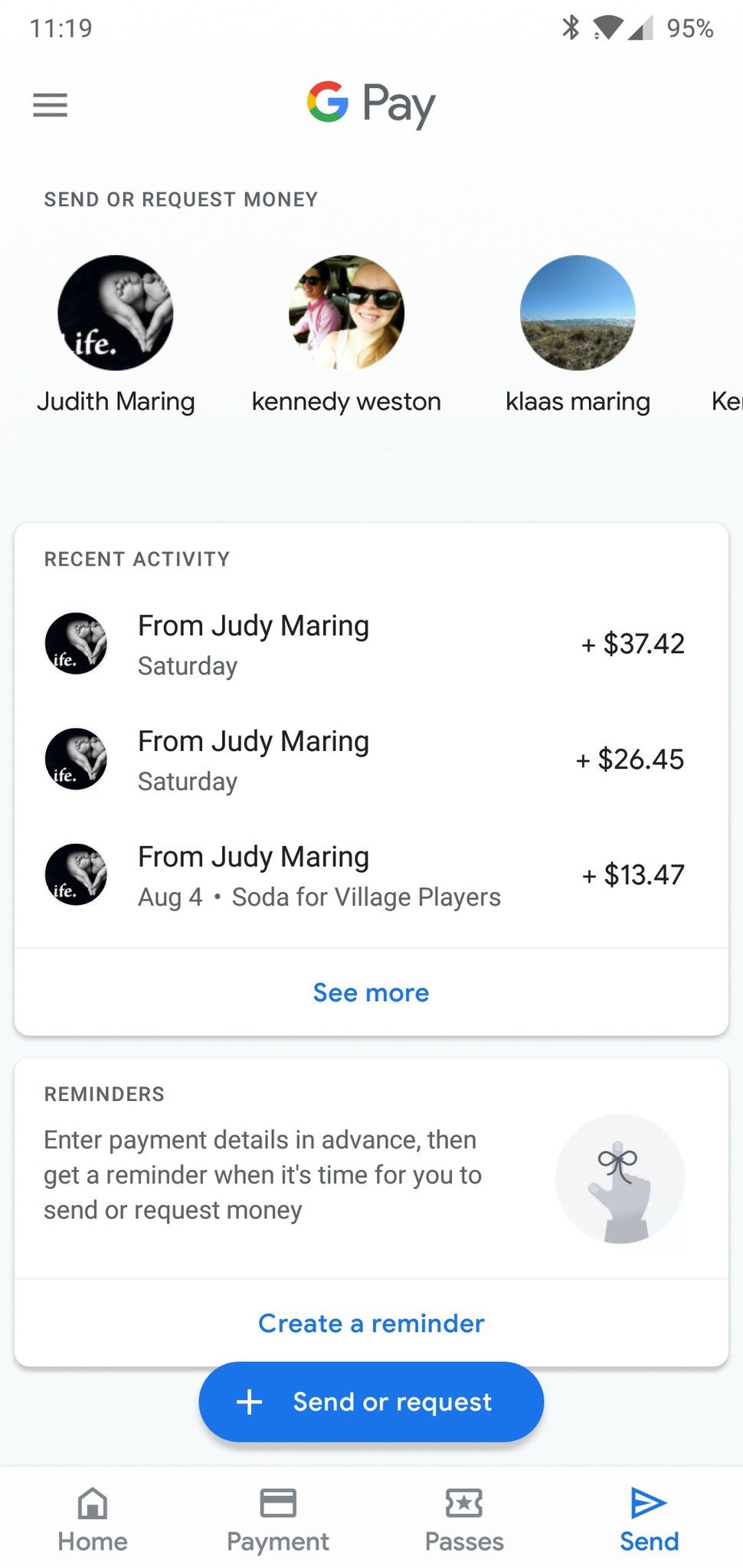
2. Tap Send on the bottom navigation bar.
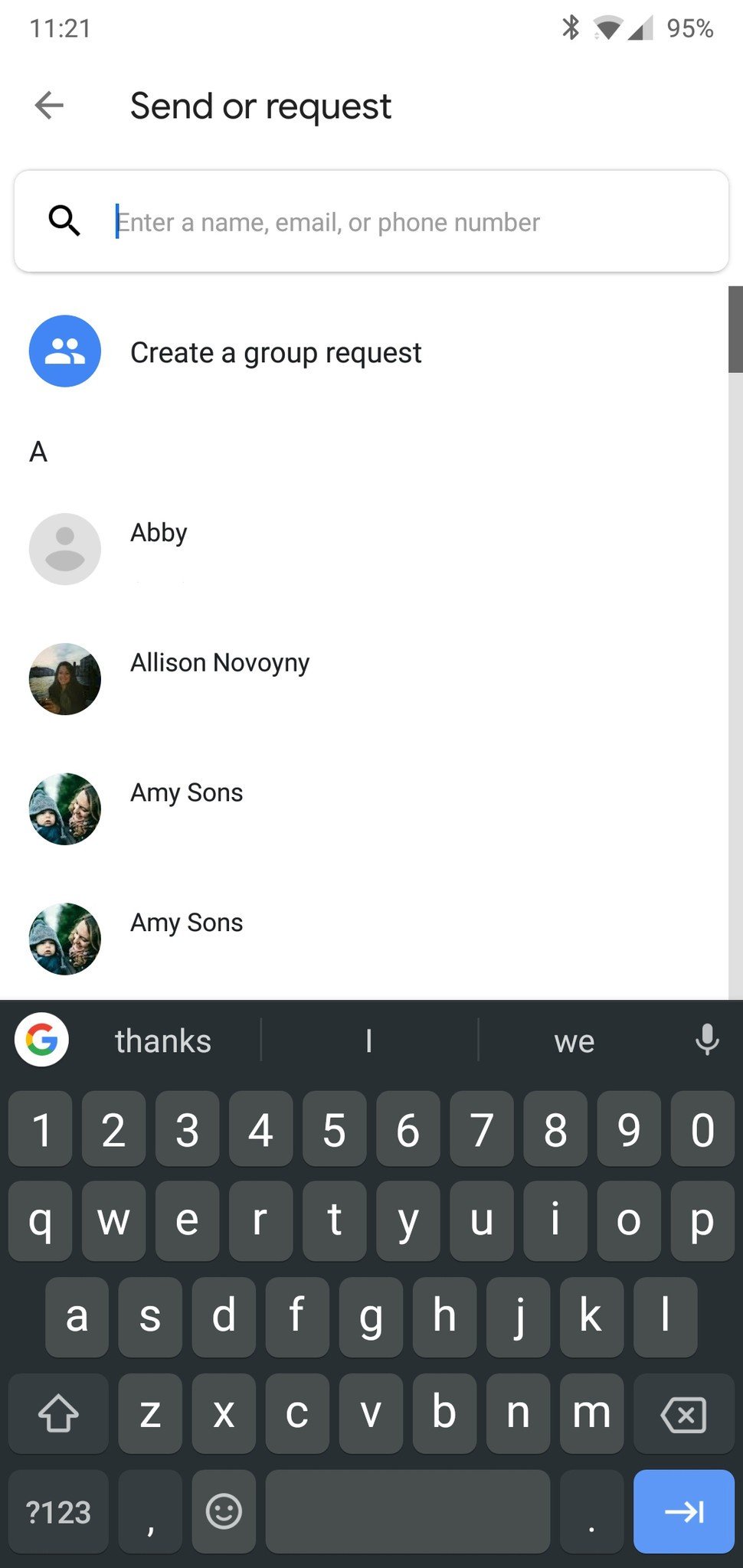
3. Tap the blue Send or request button.
4. Find the contact you’re looking for.
5. Enter the amount you want to send/request.
6. Tap Add Note if you want to leave an optional message about what the money’s for.
7. Once you’re done, tap Request or Send at the bottom to finish up.

How to send money from google pay

Send money to someone anywhere in India:

1. Open your Google Pay account
2. Tap a contact to make a payment.
If you don’t see the person that you want to send money to, tap on ‘New Payment’ on the home screen
3. tap the third option ‘Bank transfer.’ Enter all the Bank details and tap ‘Continue.’
4. Tap ‘Pay’ and enter the amount with description (what’s this for?)
5.  Tap Proceed to pay.
6.  Enter your UPI PIN.
When your money is put in place, a notification will arrive. You’ll also get a complete SMS from your bank about the debited amount.

How to check the Google pay balance?

1: Open Google Pay.
2: Scroll down and tap on ‘Check Balance’.
3: Enter your UPI PIN.
If you can’t view your account balance. You can create a new one.
How to send money from google pay
Read More »

How To Recover Deleted Photo From Your Device

How To Recover Deleted Photo From Your Device

DiskDigger can undelete and recover lost photos and images from your memory card or internal memory. No rooting necessary!* Whether you accidentally deleted a photo, or even reformatted your memory card, DiskDigger’s powerful data recovery features can find your lost pictures and let you restore them. 

You can upload your recovered files directly to Google Drive, Dropbox, or send them via email. The app also allows you to save the files to a different local folder on your device. 

* If your device is not rooted, the app will perform a “limited” scan for your deleted photos by searching your cache and thumbnails. 

* If your device is rooted, the app will search all of your device’s memory for any trace of photos, as well as videos! 

FEATURES:
  • – Two scan modes: quick scan and deep scan.
  • – Scan all storage including SD Card & internal storage.
  • – Fast, Performance.
  • – Support all types: jpg,jpeg,png.
  • – No ROOT.
  • – Upload your recovered files y to Google Drive, Dropbox, or send them via email.
  • Save the files to a different local folder on your device.

Read More »

Download Photo Lock App To Hide important Photos And videos

Download Photo Lock App To Hide important Photos And videos

Photo Lock App is completely free to hide unlimited photos and videos. Do you want your personal life really personal? Keep Secret your gallery and No need to worry when giving your smart phone to friends and family when Photo Lock app installed in your phone.

Top Features
☆ Hide Pictures & Videos: Your files will be secretly stored and can only be viewed in this app after a numeric PIN or Pattern is entered.
☆ Safe Browser: Surf through internet using safe browser and even download photos and videos which will be stored secretly inside this app. You can even bookmark your favorite sites to access them easily.
☆ App Lock: Powerful App Lock system to lock private and social apps along with Fingerprint AppLock option for compatible devices.

Advance Features Of Photo Lock apps

► Share to Hide

You can directly hide pictures and videos from phone gallery or SD card by sharing to Photo Lock app.

► Fake Vault
Create Fake vault with different password for storing fake photos and videos.

► Stealth Mode (Replace app icon)
Photo Lock app icon magically disappears and gets replaced with a secret icon e.g. News, weather, radio, etc. You can also start this app without icon from your phone's Settings/Apps/Photo Lock/MANAGE SPACE.

► Face Down Lock
The app will perform action given by you when your device faces downward. You can choose to close the app or open a website or other app in emergency.

► Fake Cover
Disguise your apps lock screen to prevent from breaking into your password. Fingerprint scanner and fake force close dialog will hide the real lock screen.

► Intruder Selfie
Automatically takes Intruder selfie when someone tries to break in your privacy by entering wrong password or pattern.

► Inbuilt Image Viewer and Video Player
Support Inbuilt Image Viewer to view pictures and slideshow them with transition effects.
Support Inbuilt Video Player to play videos with any media player installed in your phone.

► Uninstall Protection
Prevents Photo Lock app from being uninstalled from kids or strangers.
This app uses the Device Administrator permission.

This app uses Accessibility Service.

Quick Tips to use Photo Lock app : 

✔ In order to Change PIN quickly go to Settings tab and click on Change Password.
✔ After you Hide Pictures and Videos, Export icon in Photo lock brings back your media whenever needed.
✔ Easily Change SlideShow interval using the Settings tab.
✔ Use Theme icon to make the Vault Lock Screen colorful so you don’t get bored.

Frequently asked Questions About Photo Lock app ::: 
Q: If I uninstall the app, can I get my pictures back if I reinstall the app?
A: Re-installing cannot recover those deleted files. So please make sure to unhide and backup all your hidden files before uninstalling this app.
Q: What about if I lost my phone or broken?
A: Your files are stored only on your device and not online.
Q: Can I take out my media from this photo and video Locker?
A: Yes, you can easily export photos and videos using couple of steps
Q: Photos and videos are stored together or separately?
A: You can hide photos in photo locker and videos in videos locker inside this app.
Q: If I forgot my password?
A: If you Forget Password you can always Recover Password by your registered e-mail id and regain access to this app by click on forgot password option on lock pad

How to hide photos on Android
Trying to conceal pictures of your significant other? How about those pics of yourself flexing in the mirror? Here are some options for hiding photos on your Android phone.

The process to hide pictures on Android if you have an LG device is slightly different.

This time, start by heading to Settings > Fingerprints and Security > Content Lock. The phone will ask you to secure the feature using a PIN, password, or fingerprint scan.

Now go to your phone’s default gallery app. Select all the photos you want to hide and tap Menu > More > Lock. You can also lock entire folders of pictures if you wish.

When you’ve tapped Lock, the photos/folders will vanish from the library. To view them, navigate to Menu > Show Locked Files. Enter your security credentials, and the photos will reappear.

Need Help?
Feel free to mail us at: donnadanley247@gmail.com


IMPORTANT LINK::::: 

Read More »

Resume Maker - Perfect CV Creator

Resume Maker - Perfect CV Creator

A Resume Is A Document Used & Created By A Person To Present Their Background, Skills & Accomplishments.

Resumes Can Be Used For A Variety Of Reasons, But Most Often They Are Used To Secure New Employment.

A Typical Resume Contains A "Summary" Of Relevant Job Experience and Education & Projects.

Our Application Features :

  • - Save Your Resume As A PDF File.
  • - Save Your Resume For Future Use.
  • - Save Multiple Resume For Different Person’s Resumes.
  • - Nice User Interface & User Friendly UX
  • - View & Share Your Saved Resume Anytime
  • - If You Wish Would Add Your Picture In Resume
  • - Easy Process & Step By Step To Create Your Best Resume.
  • - Only 3 To 4 Minute Resume Creator Process
  • - Easy Resume Creator
  • - Easy Resume Maker
  • - Easy Resume Builder
  • - Easy Resume Editor
  • - Latest Resume Format
  • - Perfect Application For All Job Seekers
  • -Resume For Job Apply
  • - Multiple Resume Templates Available
  • - Professional Resume Creator
  • - Fresher Resume Creator
  • - Sample Resume
  • - Best Resume Format
  • - My Resume Creator

You Have To Enter The Following Details For Create Your Resume.

  • - Your Personal & Contact Information
  • - Career Objective
  • - Education Qualification
  • - Your Work Experience
  • - Your Projects Details
  • - Your Skills
  • - Your Achievements
  • - Your Hobbies
  • - Languages Known
  • - 2 References
  • - Declaration
  • - Place
Our Upcoming Features :
- Offline Resume Maker (No Internet Required)
- More Resume Formats
- Direct Share With LinkedIn & Other Social Sites.

Click Here To Download This Apps.
Read More »